
Enhancing interaction in teaching with tools provided by the University of Turku: Vevox, Zoom Whiteboard and Zoom Polls
Interaction is often a challenge in teaching. It can be difficult for teachers to maintain students’ interest during a lecture, foster dialogue, assess the group’s understanding, and create a learning environment in which everyone can participate equally, regardless of location.
Below are three tools provided by the University of Turku that you can use to increase interaction in your teaching easily.
Vevox – real-time polls and Q&A for the whole group
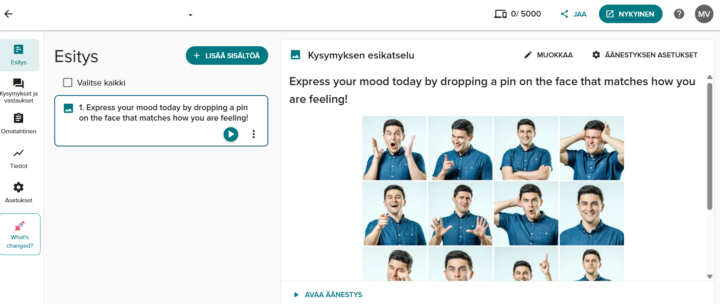
Vevox is an interactive polling and Q&A tool for teaching and various events. It enables you to conduct real-time polls and collect participants’ questions during the session. A shared and clear participation channel simplifies work, especially in large groups: participants can use their own devices, and anonymity lowers the threshold for asking and answering questions. The results quickly give the teacher an overview of participants’ understanding, helping them decide what needs clarification, what should be revisited, and when it is appropriate to move on to the next topic.
How to use Vevox in practice
At the beginning of a lecture, you can quickly assess (for example, with a multiple-choice poll) how well the content of the previous lecture was understood. If the answers vary widely, you can review the essential points immediately. You can do the same during the lecture by adding short check-in questions or quick polls at the end of each section. You can also open a discussion by using prompts such as “What is the most important factor when assessing X?” Alternatively, you can collect feedback during or at the end of the lecture—for example, by asking about the pace of the session.
More information is available on the intranet.
Zoom Whiteboard – a shared workspace for brainstorming and structuring
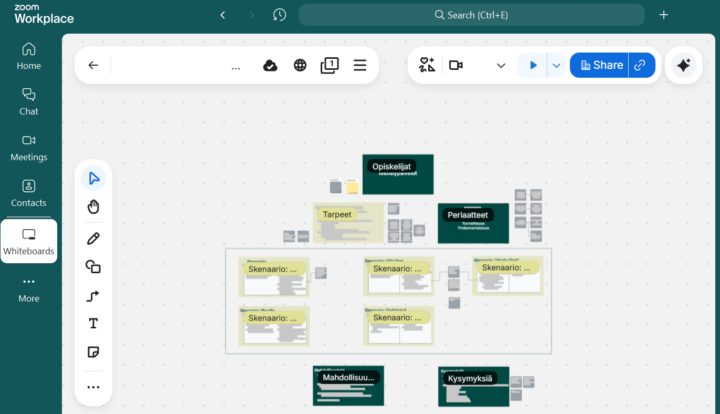
Zoom Whiteboard is a web-based Zoom tool that allows participants to work together on the same board: creating content, organizing ideas, and building, for example, concept maps or post-it-style summaries. The shared workspace enables participation regardless of whether people are in the same room or joining remotely. The board makes thinking visible: the teacher can see how groups structure content and, if necessary, guide the work in time. In addition, outputs are saved, so the whiteboard serves as a record of learning and makes later review easier.
How to use Zoom Whiteboard in practice
You can use the tool as a shared template to collect group work outputs. During the activity, groups add 3–5 notes (post-it-style) to their designated area on the board. The notes should briefly summarise the group’s key observations, examples, or questions to keep the overview easy to read. During the wrap-up, the teacher can use the board to support discussion.
More information is available on the intranet.
Zoom Polls – polling participants during a Zoom meeting
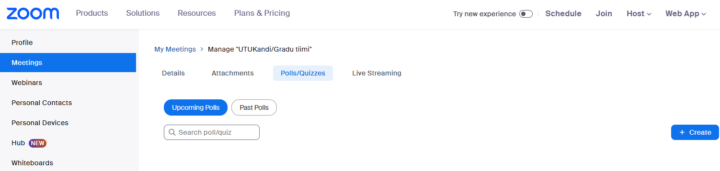
Zoom’s polling feature allows you to create single- or multiple-choice questions for your meeting. You can launch a poll during the meeting and collect responses from participants. You can also download a poll report during or after the meeting. Polls can be conducted anonymously if you do not want to collect participant information alongside responses.
How to use Zoom Polls in practice
For example, midway through a lecture, you can launch a short poll (1–2 questions) about the topic covered and ask which statement is correct or which part remains unclear. Based on the results, you can quickly see what needs to be revisited before moving on to the next topic.
More information is available on the intranet.